How to Turn Bank Statements into CSV/Excel Files Using AI
Stop paying PDF converter sites. Learn how to turn bank statements into CSV/Excel files for free using a reusable AI "skill", with a copy-paste template.
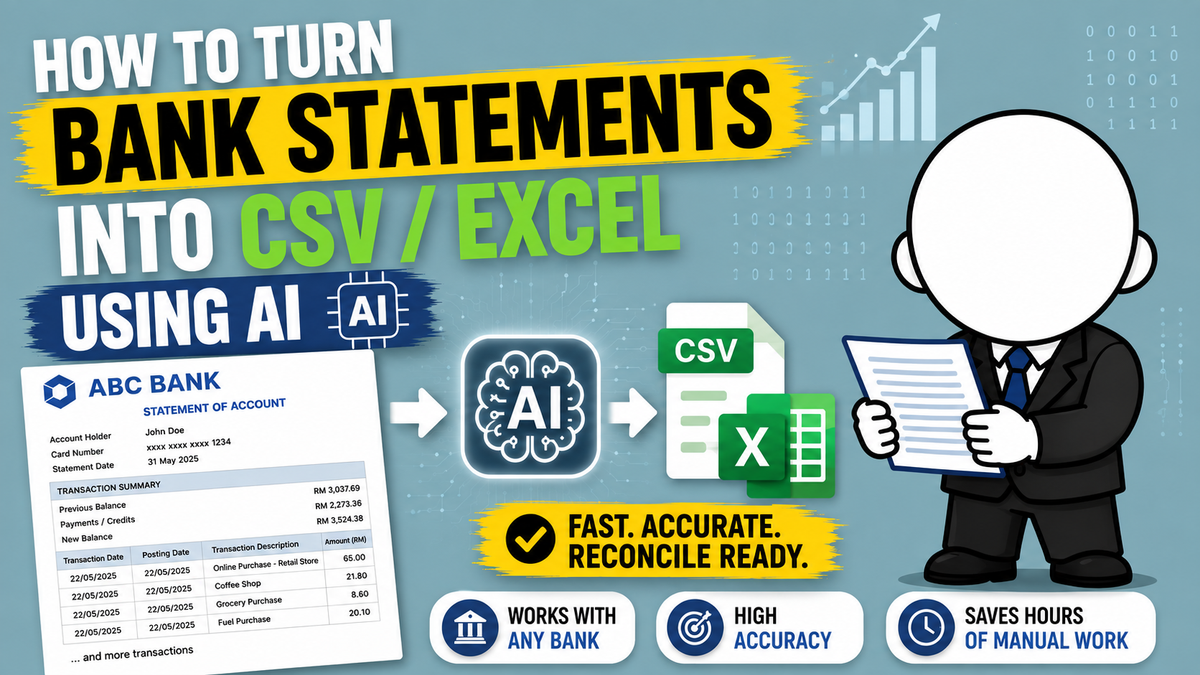
Have you been paying PDF-scanner websites to turn your bank statements into Excel files for your budget tracker? You don't need to. AI models have gotten good enough that you can do the whole thing yourself, for free, in about ten minutes of setup.
Why I Stopped Paying for PDF-to-Excel Converters
Most "PDF to Excel" converter sites are thin wrappers around basic OCR. They don't understand what a bank statement actually looks like. They can't tell a running balance column from a transaction amount column, they don't reconcile totals to catch mistakes, and they definitely don't handle descriptions that break across a page boundary. You still end up checking every row by hand anyway.
An AI model can be told exactly how to read a specific statement layout: which columns to expect, which rows are just summary lines, when a payment credit needs to be flagged as negative, and critically how to verify its own work against the printed balance before handing the file back. Once it knows the rules, it does the tedious part far faster than I ever could manually.
The Trick: Give the AI a "Skill" Instead of a Vague Prompt
The part that actually made this reliable wasn't a clever prompt. It was writing the instructions down once, in detail, and reusing them every time.
I built what's called a "skill": a saved set of instructions telling the AI model exactly what to look for in a given bank statement layout, and what checks to run before handing back the file.
Skills are a native feature in Claude, but functionally they're no different from a long, structured system prompt pasted into any other AI tool's custom instructions or project settings.
Doing it this way means the model doesn't waste time (or your token budget) figuring out an approach from scratch. It knows immediately whether it needs OCR, which columns map to which fields, and that it isn't allowed to call the job done until the closing balance checks out against a "previous balance" or "brought forward" figure.
Step 1: The Skill File (Grab It From GitHub)
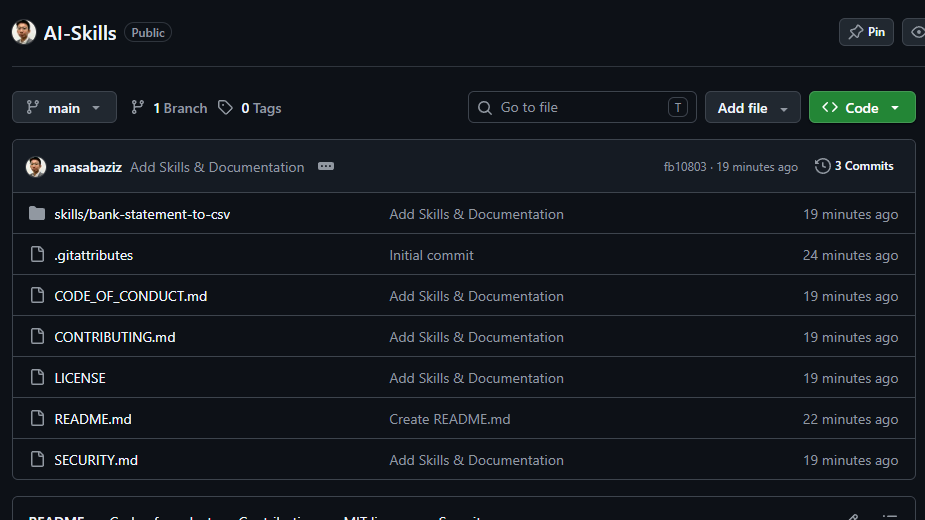
Instead of copy-pasting a huge wall of text into this post, I've put the whole thing in a repo so it's easier to keep updated: github.com/anasabaziz/AI-Skills.
Head to the skills/bank-statement-to-csv folder and grab SKILL.md , that's the file with the bank-specific layouts (Affin credit card, Affin debit/current, HSBC credit card, HSBC savings/current, and Maybank Islamic), plus the balance-verification logic baked in.
Step 2: Load the Skill Into Your AI Model
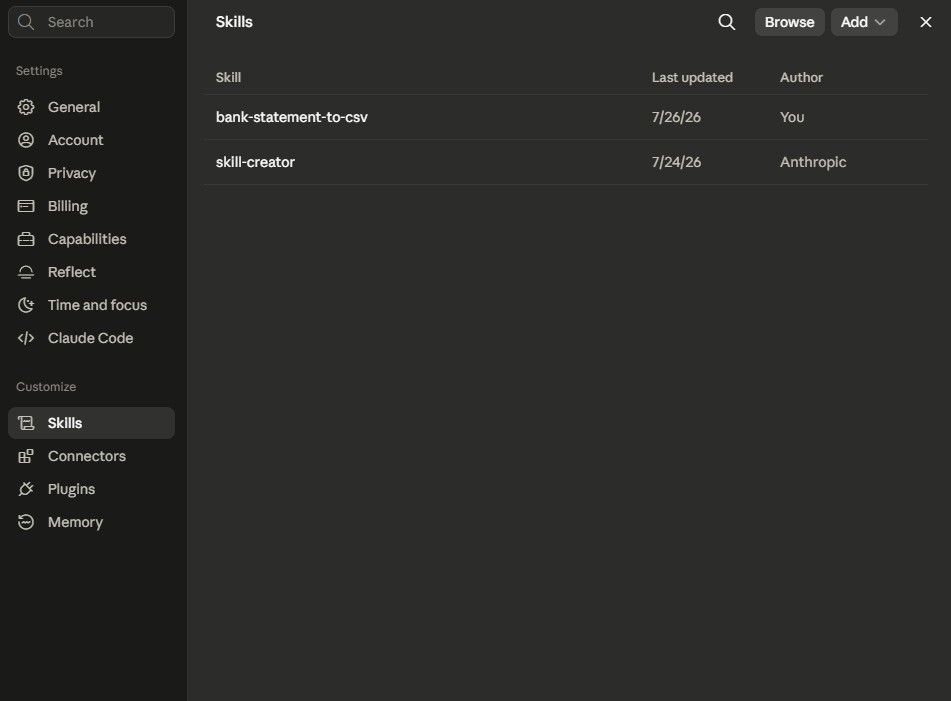
Paste the skill into your AI tool's project or custom-instructions section so it applies automatically every time you're working in that project. You only need to do this setup once per tool.
A few honest observations from running this across closed frontier models:
- Gemini currently seems the strongest at reading scanned images while burning through the fewest tokens. A solid pick if you're processing a lot of statements in one sitting.
- Claude follows the reconciliation steps closely and works well, but expect it to consume tokens noticeably faster than Gemini on image-heavy statements.
- ChatGPT would be my last pick for this specific task, mainly because of how it limits the number of attachments per conversation on lower tier subscriptions.
Worth flagging with any closed, cloud-hosted model:
your statement data gets sent to a third-party data center to process.
The alternative is an open-weight model running locally. You'll need reasonably capable hardware, though it seems a lot of people running Mac Minis these days already have enough horsepower for it.
Step 3: Upload Your Statement and Prompt
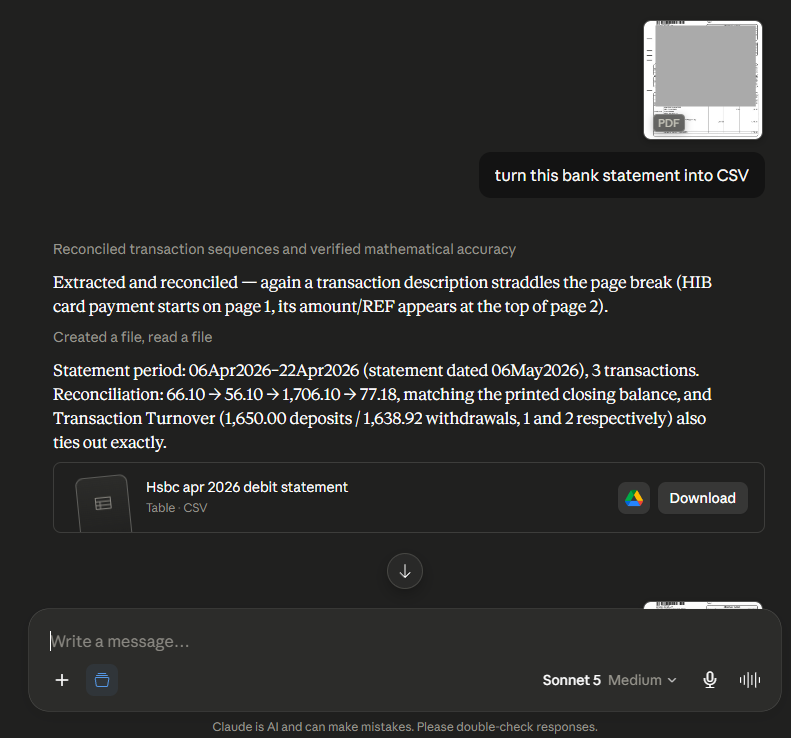
Once the skill is loaded, attach your bank statement PDF and give it a plain instruction something like "turn this bank statement into a CSV." That's genuinely all it takes. Then use the file as needed for your analysis.
A few practical notes from doing this across a full year of statements:
- You don't need a paid subscription. Free-tier accounts on most foundational models can handle this, though you may be limited on how many statements you can process in a single session.
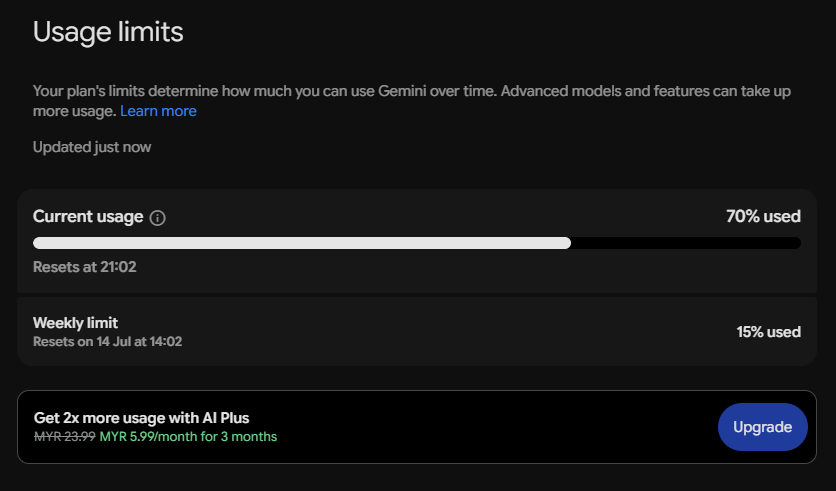
- Upload one statement at a time. Attaching every month at once burns through tokens fast, and most models start behaving unpredictably or stop working outright once you hit the session's usage limit. That turns all the work you've done into nothing, so it's not worth the risk.
- Always let it reconcile before you trust the output. A properly written skill sums the transactions, compares them against the statement's printed opening and closing balance, and flags any mismatch instead of quietly guessing. If a number's off, it should re-check the specific rows rather than fudging a total to make it match.
Is It Worth Switching from Paid Converters?
If you're still manually retyping transactions into a spreadsheet, or paying a PDF-converter site every month, this is a five-minute setup that pays for itself on the very first statement. The one non-negotiable step is the balance reconciliation check. Never trust an AI-generated CSV that hasn't been verified against the statement's own printed totals.
I'll keep refining this skill as I run it against more banks and account types. It already handles five different account layouts across three Malaysian banks, and every new edge case I hit gets folded back into the file.
Let me know if you find another way to make this process even more efficient, or if you hit a bank statement layout it doesn't handle cleanly. I'd like to hear about it.