How to Practice SQL Data Extraction Yourself (Free Guide with Neon.tech + Power Query)
Learn how to practice SQL data extraction for free using Neon.tech PostgreSQL and Power Query. Step-by-step guide to set up your own SQL database and connect it to Power BI or Excel.

Have you ever wanted to practice extracting SQL data without access to your company’s internal databases?
Most organizations tightly control their SQL environments for good reason. This makes it hard to learn and experiment on your own.
That’s exactly the problem I faced when I wanted to test query folding in Power BI and Power Query. Instead of waiting for access to corporate systems, I decided to set up my own free SQL playground. The best platform I’ve found for this is Neon.tech that uses PostgreSQL.

In this guide, I’ll walk you step-by-step through how to set up your own PostgreSQL database on Neon.tech, load sample data, and connect it to Power Query in Power BI or Excel, all without paying a cent.
Why Practice SQL Data Extraction Yourself?
Before diving into setup, let’s talk about why this is worth doing.
- Real-world learning: SQL is the language behind most business data. Being able to extract and transform data yourself helps you understand how data flows into dashboards.
- Safe experimentation: You can try advanced transformations, queries, or even break things. No IT admin will be upset.
- Power BI / Power Query practice: Perfect for testing query folding, performance optimization, or just understanding how connectors work.
Why I Recommend Neon.tech (Over Microsoft Fabric or Azure)
When testing SQL integrations, you could use Azure or Microsoft Fabric. But the catch? Both usually require a subscription or a limited-time trial.
That’s why I switched to Neon.tech. It’s a serverless PostgreSQL platform that gives you:
- Free tier (no credit card required)
- Instant database creation
- Copy-paste connection strings
- Modern UI and Git-like branching for databases
For most learners or Power BI professionals, Neon is perfect; it's lightweight, free, and reliable.
Step-by-Step: Using Neon.tech PostgreSQL with Power Query
Let’s go through the exact steps I used to set up my own SQL environment.
Step 1: Create a Neon.tech Account
- Go to https://neon.tech.
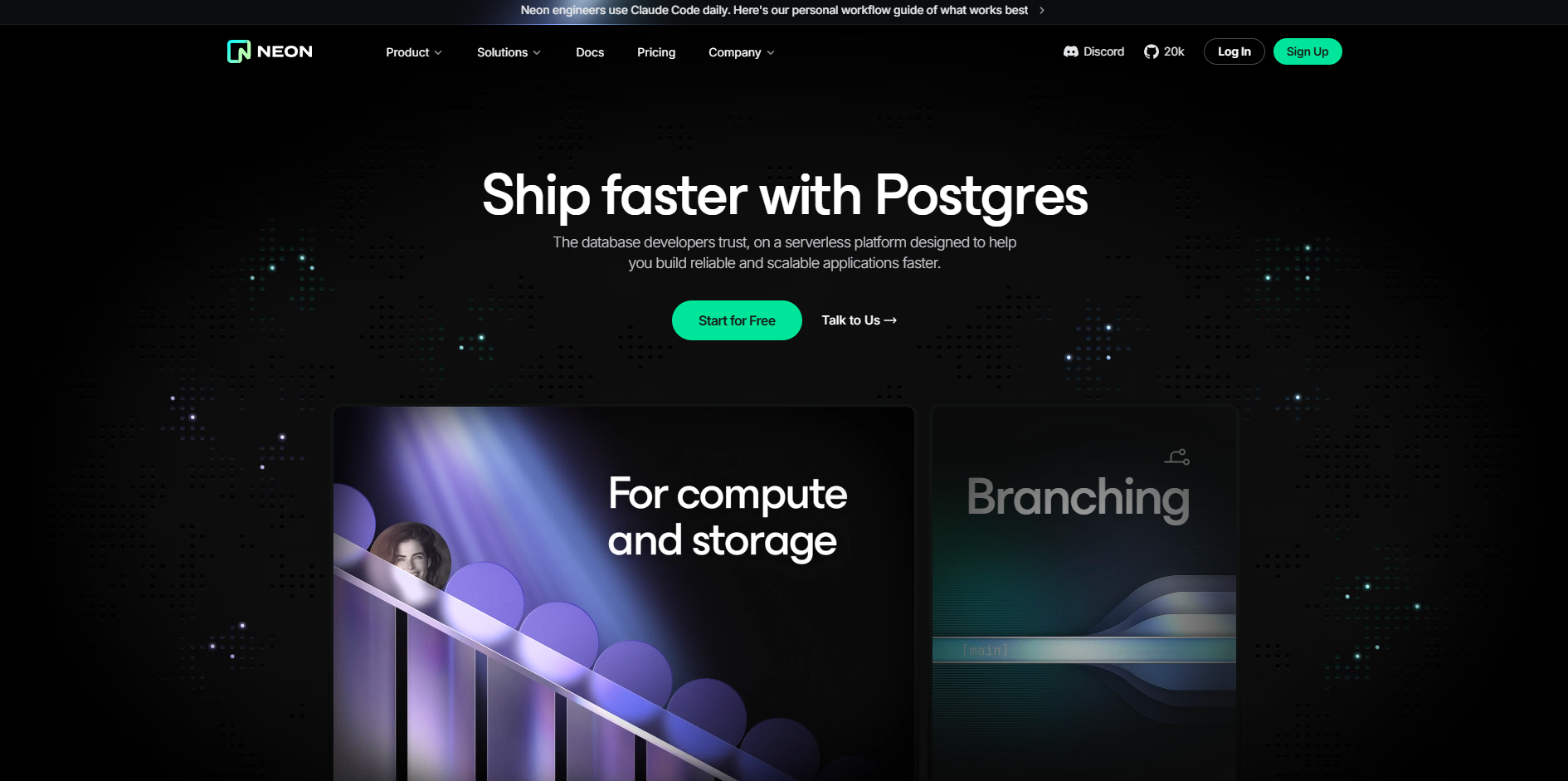
- Sign up with GitHub or Google; this is the fastest way.
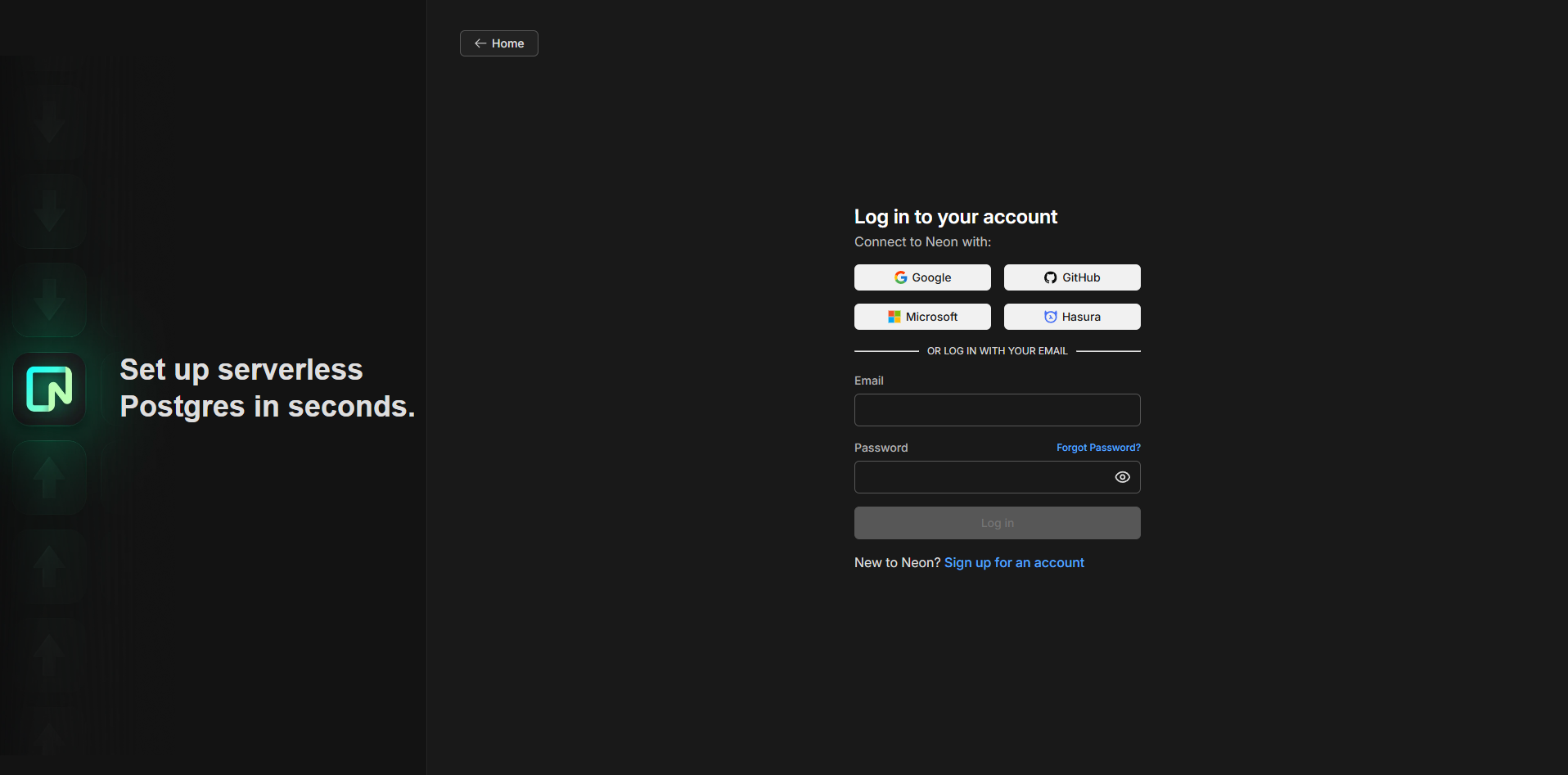
- Once in the dashboard, click “Create Project.”

Step 2: Create a Free PostgreSQL Database
- Enter the following details to set up the project
- Give your project a name, for example:
SQLTest. - Choose a Cloud service provider; AWS has more server locations than Azure.
- Choose a region closest to you (e.g., Singapore if you’re in Malaysia).
- Give your project a name, for example:
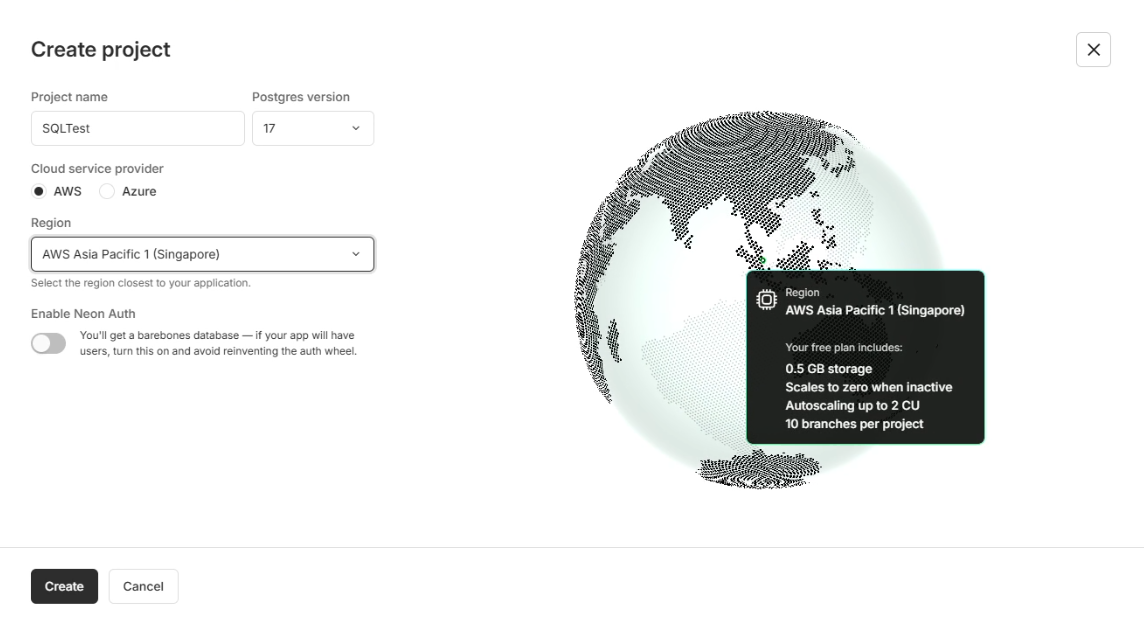
Neon automatically sets up:
- A PostgreSQL database
- A default branch (your database environment)
- A connection string
Example connection string generated:
psql 'postgresql://neondb_owner:npg_VS4rFvQw9oLh@ep-crimson-art-a1tf74hb-pooler.ap-southeast-1.aws.neon.tech/neondb?sslmode=require&channel_binding=require'
Broken down, the string is interpreted as:
- Server:
ep-crimson-art-a1tf74hb-pooler.ap-soutcheast-1.aws.neon.tech - Database:
neondb - Username:
neondb_owner - Password:
npg_VS4rFvQw9oLh
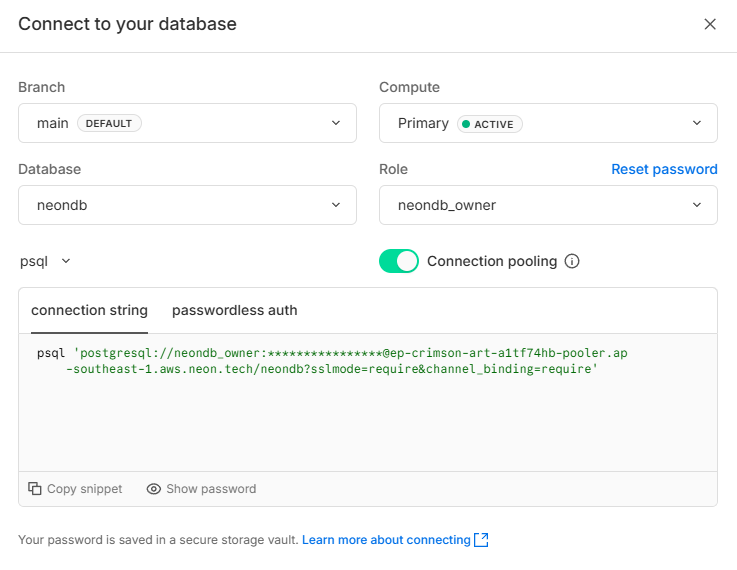
You’ll use the information above soon to connect Power Query.
Step 3: Load Sample Data into Neon
Neon starts empty. So let’s create a dataset.
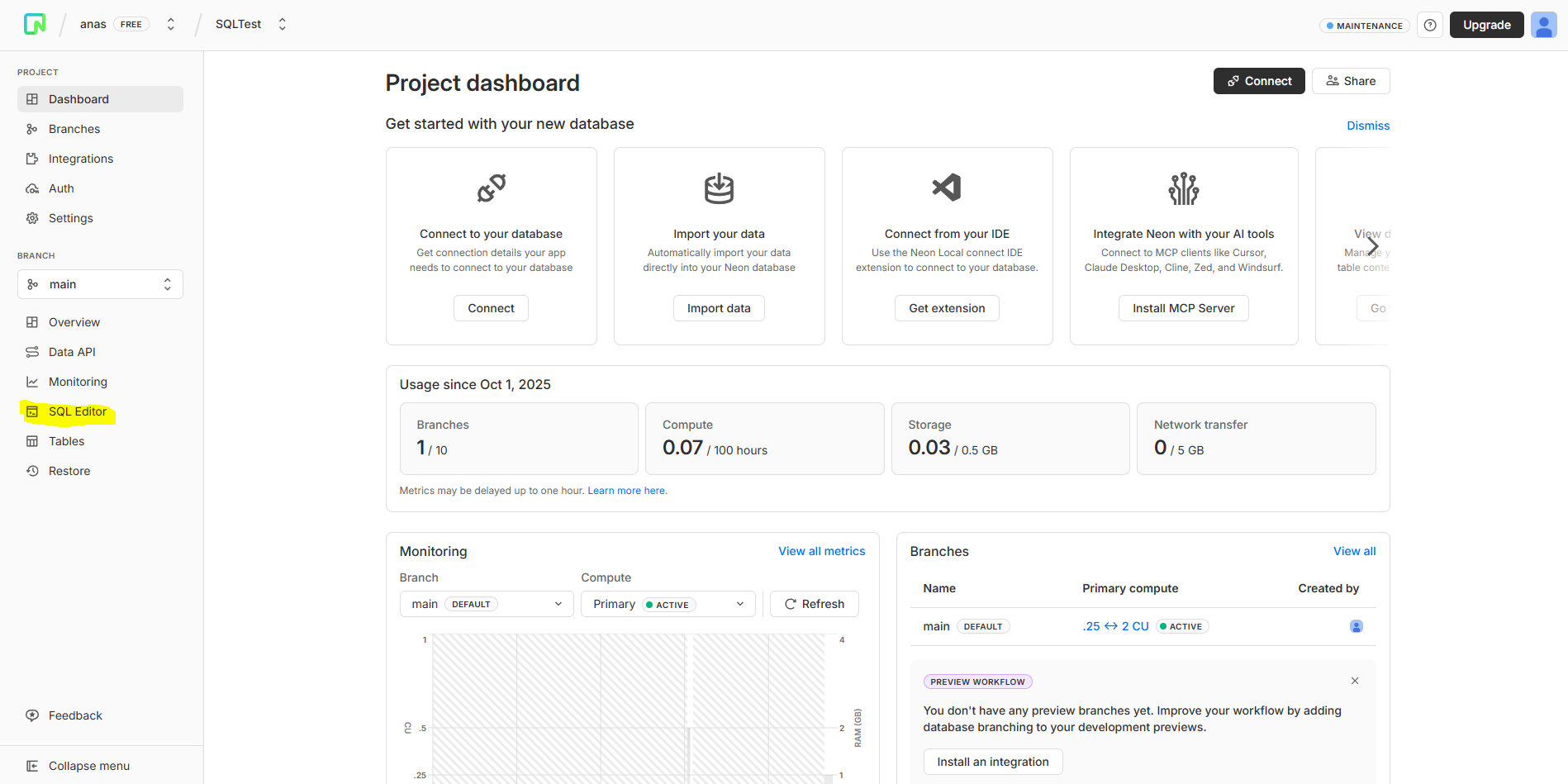
- In your Neon dashboard, open the SQL Editor.
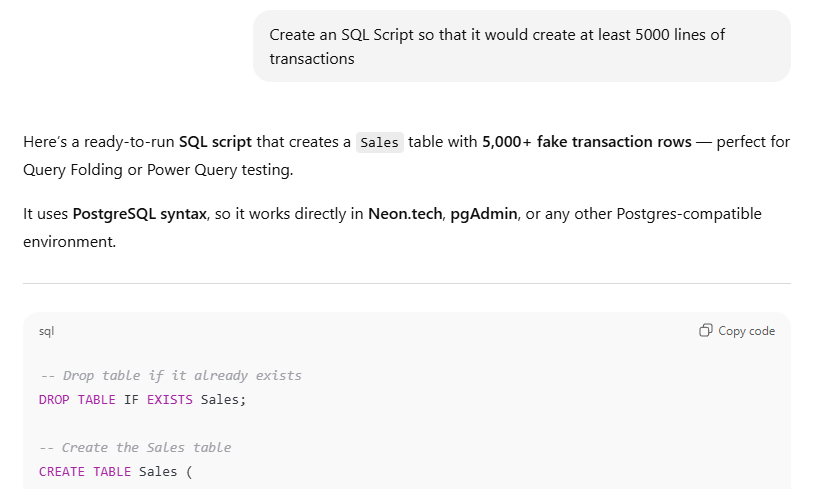
- Use ChatGPT or another LLM to generate a sample SQL dataset (check out my guide on how to get started with vibecoding).
Prompt idea:
“Create an SQL script so that it would create at least 5000 lines of transaction data.”
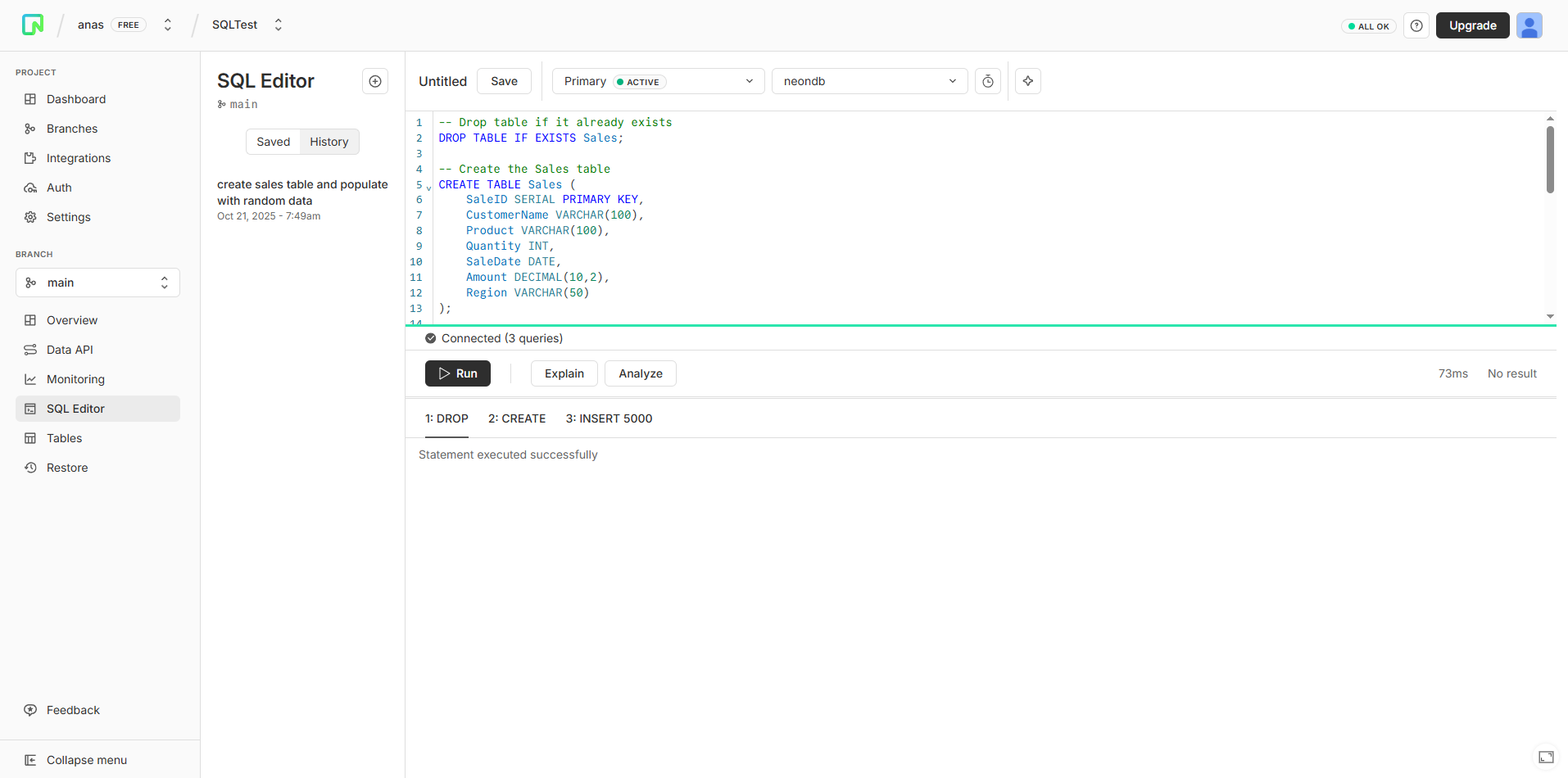
- Paste the script into Neon’s SQL Editor and click Run.
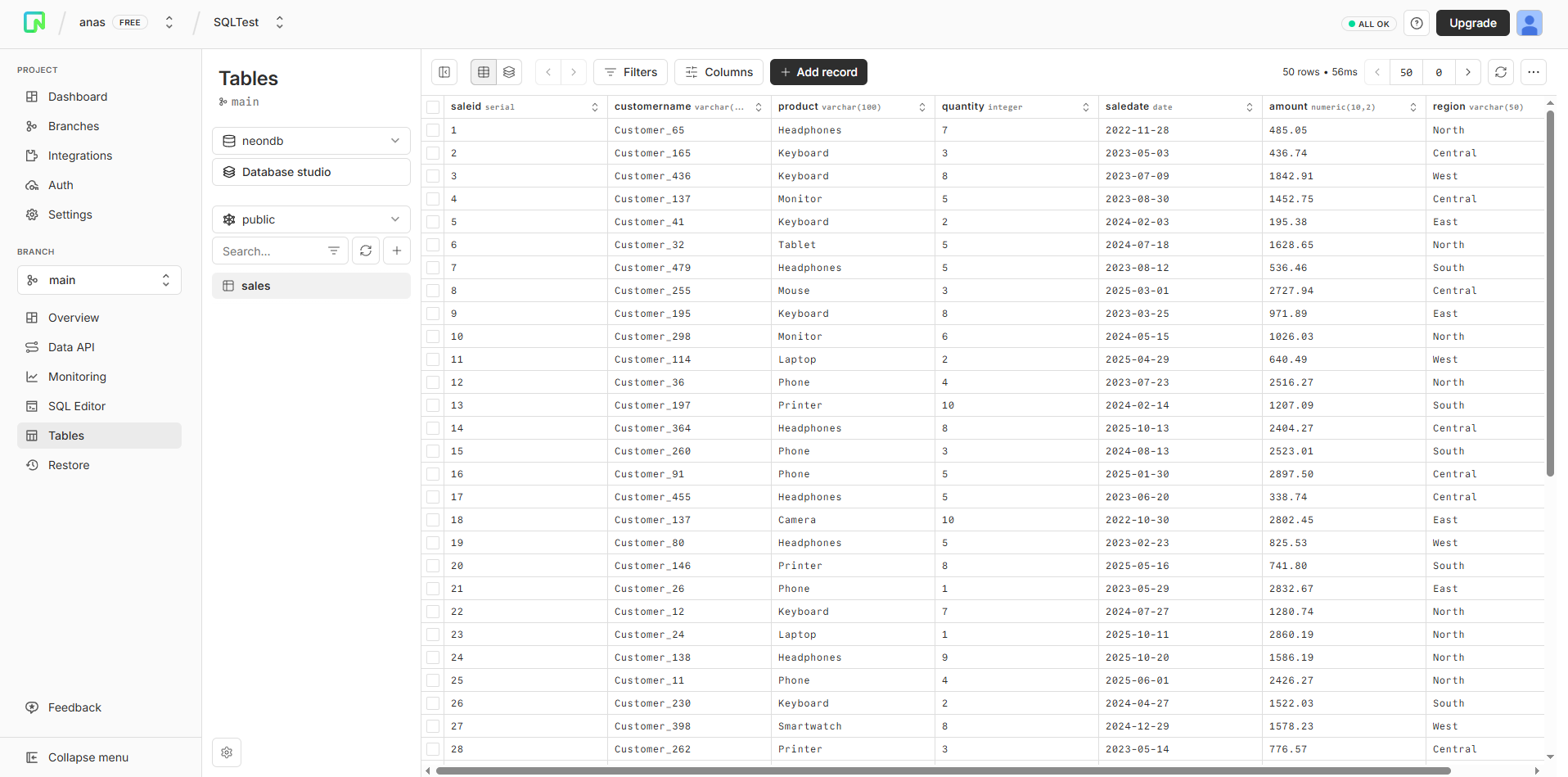
You now have a sample transactional dataset to practice with. It's perfect for testing joins, filters, and aggregations.
Step 4: Connect Neon Database to Power Query
Now for the fun part, connecting your SQL database to Power BI or Excel. I recommend using Power BI instead of Excel to connect to SQL databases, as there is a high likelihood that a large volume of transactions is expected. It would be easier to visualize this in Power BI rather than Excel.
If using Power BI Desktop:
- Open Power BI → Get Data → Database → PostgreSQL Database.

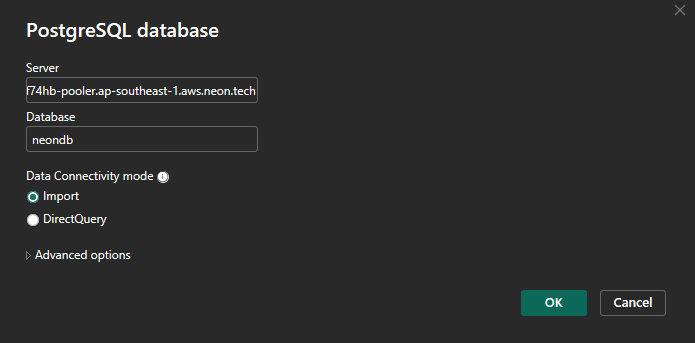
- The PostgreSQL database menu will pop up.
- In the Server field, enter your Neon host:
ep-crimson-art-a1tf74hb-pooler.ap-southeast-1.aws.neon.tech - In the Database field, type:
neondb
- In the Server field, enter your Neon host:
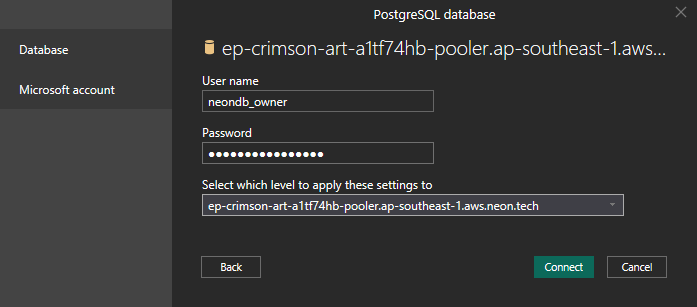
- For authentication, use the same username and password from your connection string.
- Username:
neondb_owner - Password:
npg_VS4rFvQw9oLh
- Username:
If using Excel:
- You will first need a PostgreSQL driver to connect via Excel. The tutorial can be found here.
- Go to Data → Get Data → From Database → From PostgreSQL Database;
- Follow the same connection details above.
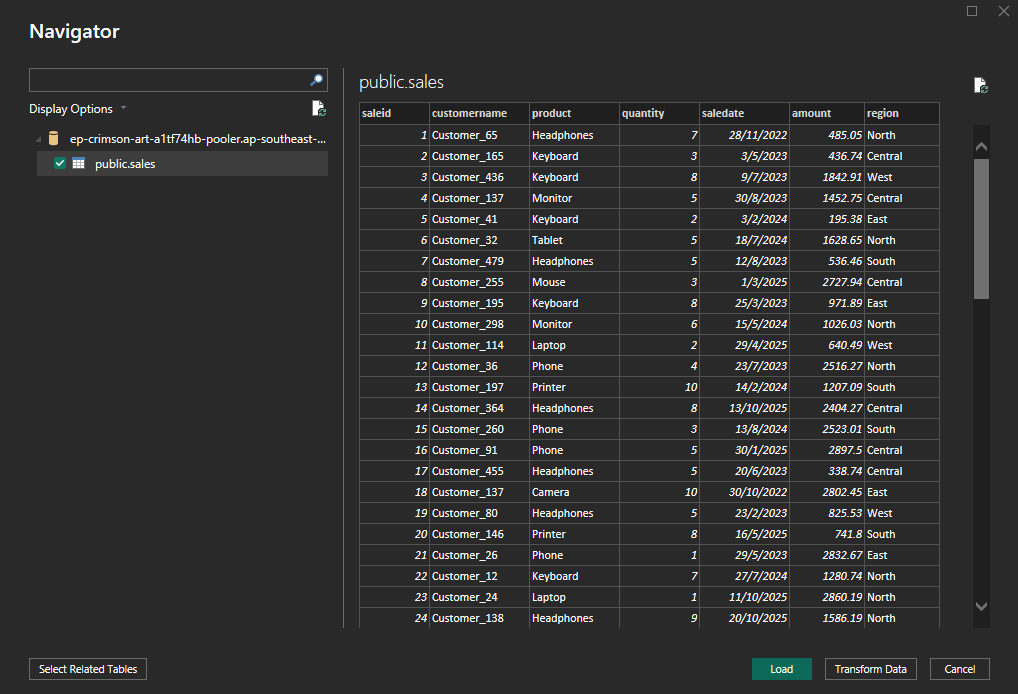
Once connected, you can view all your tables, preview data, and even check query folding behavior directly in Power Query Editor.
Testing Query Folding and Data Extraction
Here’s where the learning happens.
- Start by loading a few tables and applying transformations in Power Query.
- Open the View Native Query option to see how Power Query translates your transformations into SQL.
- Experiment with filters, joins, and custom columns to see which operations fold back to the database and which don’t.
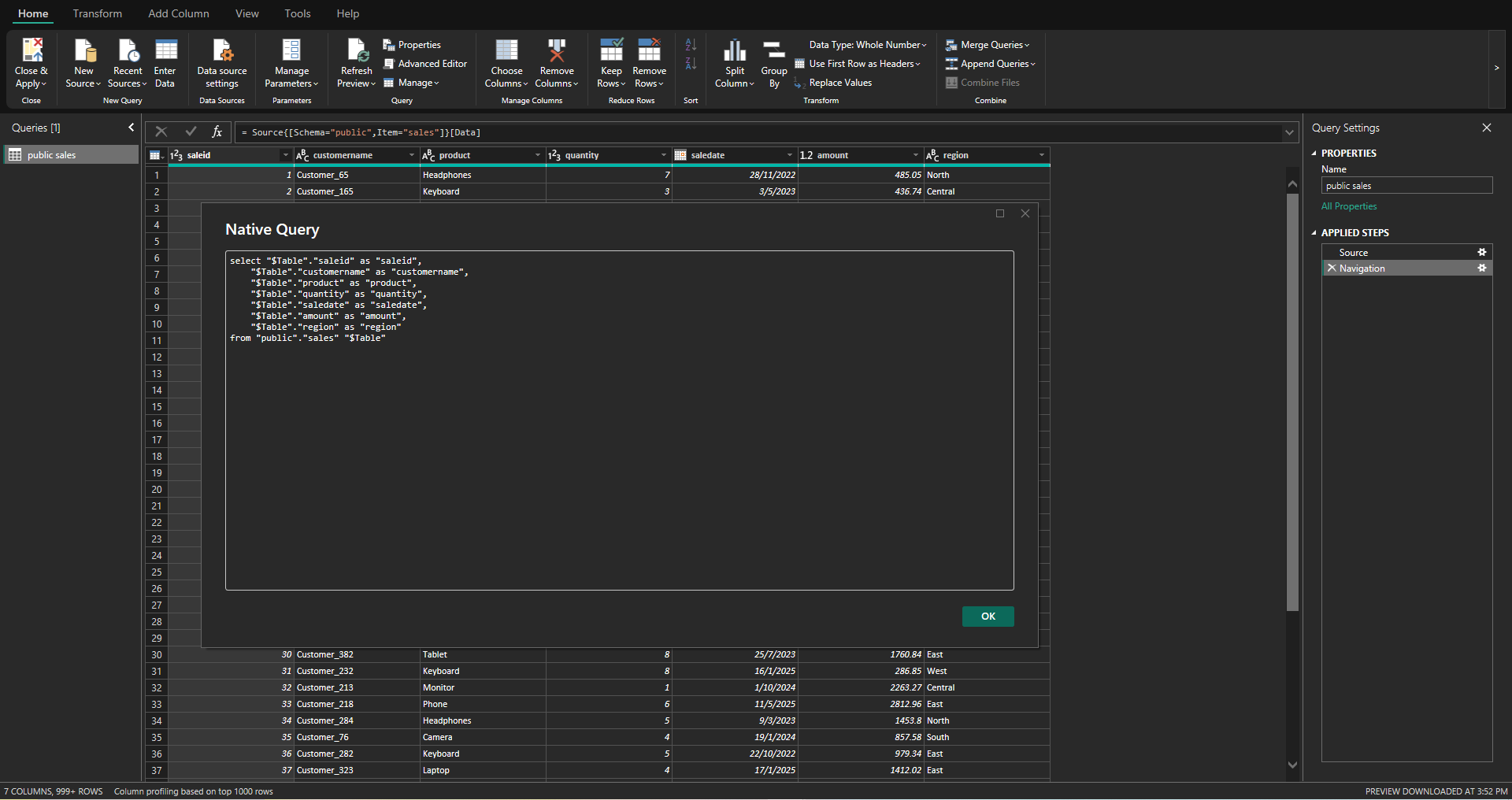
This kind of hands-on testing gives you a much deeper understanding of how Power BI optimizes data queries behind the scenes. Here's my guide on how to load SQL data faster.
Troubleshooting Tips
- If Power BI can’t connect,
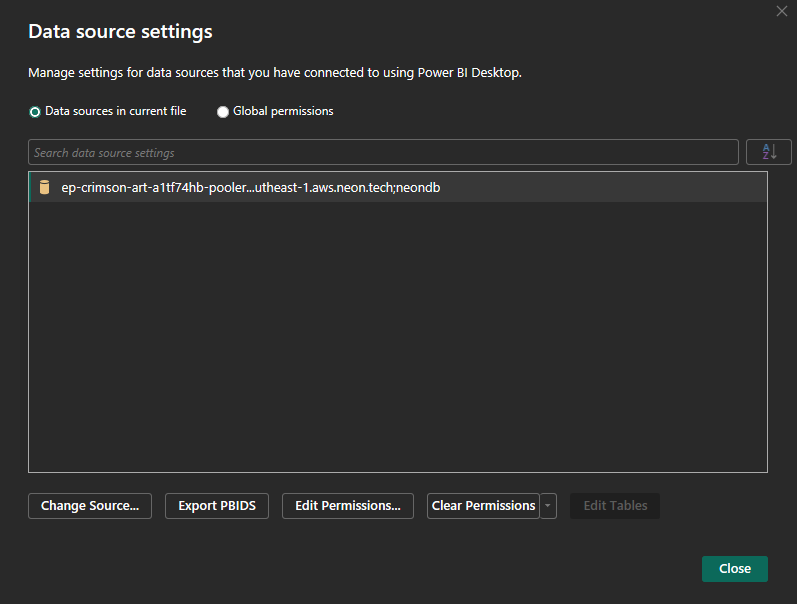
- Delete all previous permission information by opening Options & Settings → Data Source Settings → Clear Permissions → Clear all permissions.
- Check that the PostgreSQL driver is installed for older versions of Power BI (Power BI should have the driver pre-installed for version 2020 and beyond).
- Some corporate networks block remote database connections. Try from a personal network first.
- You can always reset credentials or generate a new password from Neon’s dashboard.
Final Thoughts: Build Your Own SQL Playground for Free
Setting up a database on Neon.tech takes just 10 minutes, and it’s one of the best ways to level up your SQL and Power Query skills.
You’ll not only learn how to connect and extract data, but also how transformations actually run under the hood. With this knowledge, you now have the skills to make Excel reports that connect directly to SQL databases in your organization.
Whether you’re testing query folding, ETL workflows, or just brushing up on SQL syntax, this setup is a practical, no-risk way to learn by doing.
Related Articles:
 Anas
Anas