How to Build an Internal Data Repository Using Microsoft Forms (and Connect It to External Databases)
Create your own internal data repository with Microsoft Forms and connect it to external databases like Power BI or SQL, no coding required.

If you’ve ever needed to combine organization data with internal information that doesn’t exist in your source system, you’ve probably hit a wall. Many organizations have a centralized database for reporting, but internal details like team-specific inputs or department-only attributes often live nowhere accessible.
The simplest fix? Build your own internal repository of information that complements your organization's database. And the best part is you can do this entirely with Microsoft Forms and Excel, tools you already have.
I’ve done this myself several times across analytics projects, and it’s surprisingly efficient once you set it up right.
Why You Need an Internal Repository
Organization database systems (externally managed, such as HR systems, CRMs, and finance tools) often contain structured but limited data. For example:
- A Human Resource database might have employee IDs but not the project roles you track internally.
- A Customer Relationship Management database might have client contact details, but not your internal account manager assignments.
- A Procurement Management System database might have details of invoice information, but not internal tasks needed to be completed by staff related to the procurement
By creating your own repository, you can:
- Capture additional context not stored elsewhere.
- Keep your data live and accessible.
- Seamlessly merge it with your main department databases for complete reporting.
Step-by-Step: Building Your Repository with Microsoft Forms
1. Create Your Form
Start in Microsoft Forms. Build a simple form that collects the missing data points your organization's database system lacks. This could be things like department-specific roles, additional attributes, or one-off data that matters only internally.
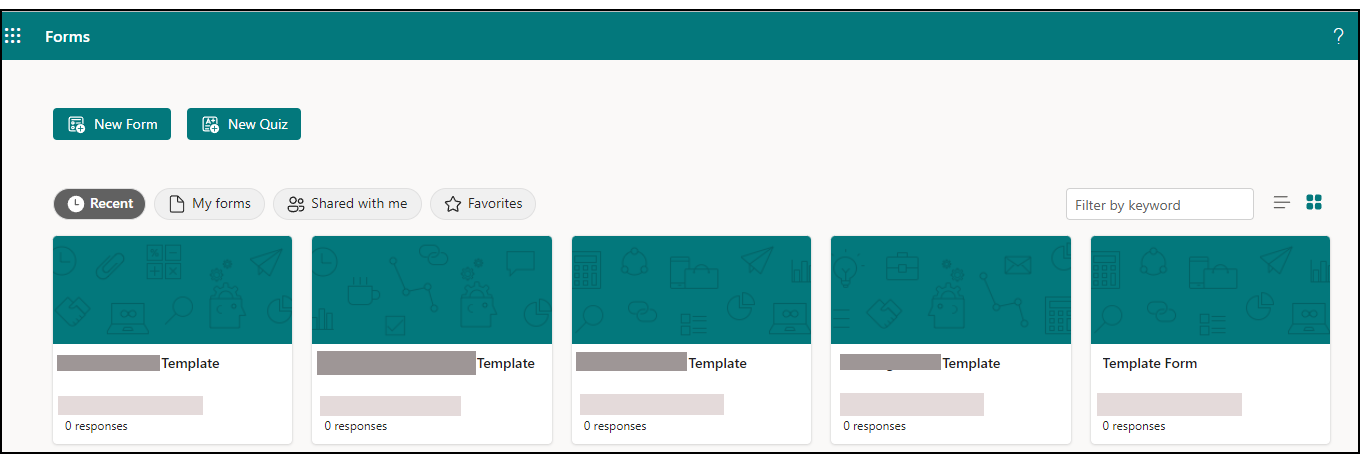
Pro Tip: Keep your form focused. Too many fields discourage quality responses.
2. Include a Unique Identifier (Your Primary Key)
To connect this internal dataset with your organization's database later, you’ll need a shared key. This should be something that exists in both systems.
For most organizations, this could be User ID, Staff ID, or Email Address. It's usually managed through Microsoft Active Directory. Or it could be something more unique, like an Invoice Number or a Project ID.
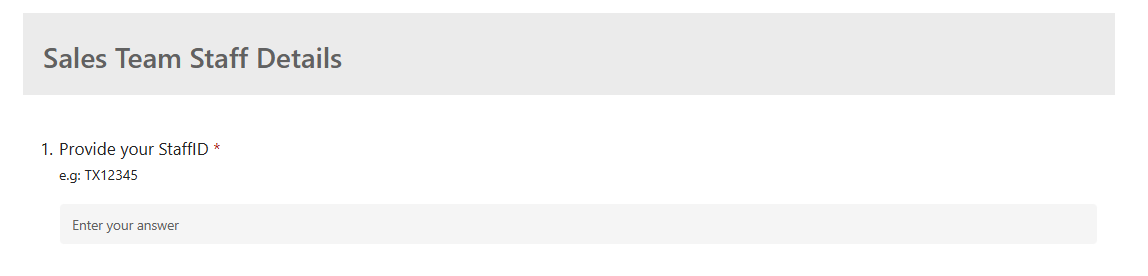
Make sure one of your form fields captures this identifier exactly as it appears in your organization's database system. That’s what will let you create a relationship in your data model or merge them later.
3. Get Your Team to Fill It Out
Once the form is ready, share it with your users. This is your data-collection phase. You need to ensure 'Record name' and 'One response per person' are ticked so that you can trace who provided information and that no duplicates are made.
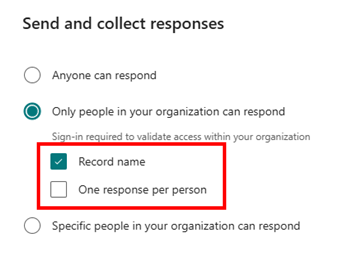
You can monitor responses in real-time inside Forms or wait until all submissions are in. When complete, you’ll have a clean, structured dataset. All of this is managed automatically by Microsoft Forms.
4. Obtain the Online Repository Link
In Microsoft Forms, click Open in Excel Desktop. This creates a linked workbook stored in your organization’s OneDrive or SharePoint.
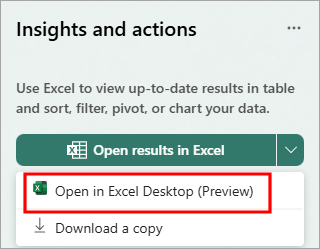
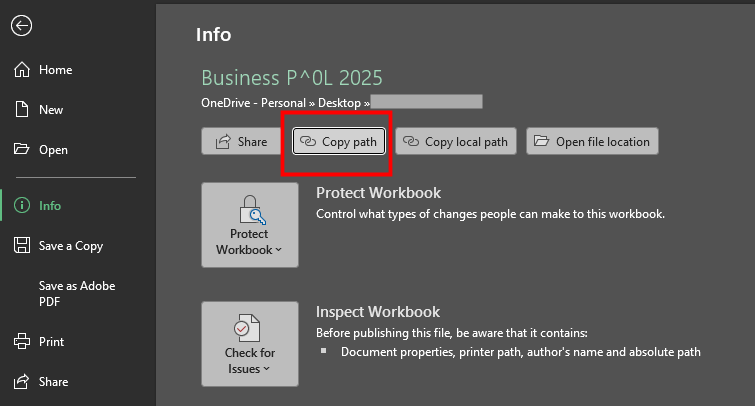
This Excel file will act as your internal data repository. Each new response will sync directly into the workbook. From the Excel workbook, you can grab the online file link via 'Copy path'.
5. Connect Microsoft Forms to Your ETL Tool
Here’s where the real magic happens.
Now you can open your preferred data tool, Excel, Power BI, or even any other ETL pipeline, and connect to your data source via its web path.
You will only need to paste the form's path into your ETL tool. In Excel, it's 'Get Data' > 'From Web'. Ensure you remove everything after .xlsx in the link; you only need the core file path.
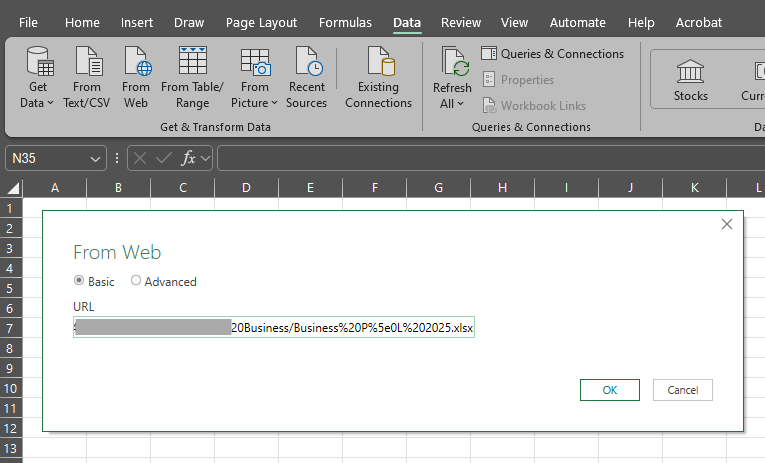
Now you’ve built a live connection between your internal repository and your reporting platform.
6. Merge Internal and Organizational Data
Once connected, you can easily join your internal Microsoft Forms dataset with your organization's databases. Examples of ways to combine data are:
- In Excel's Power Query, use Merge Queries and match on your shared key (e.g., User ID).
- In Power BI, you can opt to keep the tables separate and create a relationship between the primary keys of the Form's table and your organization's database table.
Now there is a lot more information you can show via dashboards or flat files with these combined details.
Pro's & Cons
Advantages of This Setup
- Simplicity: You’re using Microsoft tools your organization already licenses, Forms, Excel, Power Query, and Power BI. No need for servers, APIs, or new systems.
- Control: Your department owns the data. You decide what’s collected, who edits it, and how it integrates.
- Flexibility: Need to update a field? Just edit the form. It automatically updates the Excel schema.
- Security: All data stays within your Microsoft 365 environment, following your company’s compliance policies.
Potential Drawbacks (and How to Manage Them)
- Manual data entry: You need to get users to update the necessary data. Mitigate this by limiting fields and providing clear instructions.
- Data quality: Users may update irrelevant data. Add validation rules in Forms (like required fields or data types).
Case Study Example: Combining Staff Data with Project Information
Let’s say your Human Resource system tracks only names and departments, but your team needs to add project roles or skill levels for internal tracking.
- Create a Microsoft Form with fields for User ID, Project Role, and Skill Level, and other relevant data columns.
- Get each team member to fill it in once. Microsoft Forms allows amendments to the user's form, which can be changed in the form's settings.
- Open the form in Excel Desktop and copy the online file path.
- Using your preferred ETL Tool, get data using the online file path. Merge it with your HR system’s data on User ID.
The result? A complete employee dataset enriched with internal fields for project reporting. No database admin needed.
Final Verdict: Worth Doing?
Absolutely.
If your organization already runs on Microsoft 365, this is one of the easiest and most maintainable ways to bridge gaps between external databases and internal data.
It’s low-cost, low-maintenance, and flexible enough for both technical and non-technical users. Whether you’re managing analytics, automations, or reporting pipelines, a Microsoft Forms + Excel repository can serve as your internal data glue.
If this data is being used as a dashboard, you can always show the underlying data via an Excel file using the OLAP Connection to always show a Live file. Below is a good guide to get started.
Related Article:
 Anas
Anas